Install the Extension
Download the package, then load it into Chrome in developer mode. It takes about two minutes.
autocomment-extension.zip
Official offline package for AI Comment Assistant. Works in Chrome, Edge, Brave and other Chromium browsers.
Why developer mode? The extension is distributed as an offline package outside the Chrome Web Store, so Chrome asks you to load it in developer mode. The steps below walk you through it.
Installation guide
-
1
Download and unzip the package
Click Download above to save
autocomment-extension.zipto your computer, then unzip it. Keep the extracted folder somewhere safe — you'll select it in step 4. -
2
Open the extensions page
Open a new tab, type
chrome://extensions/in the address bar and press Enter.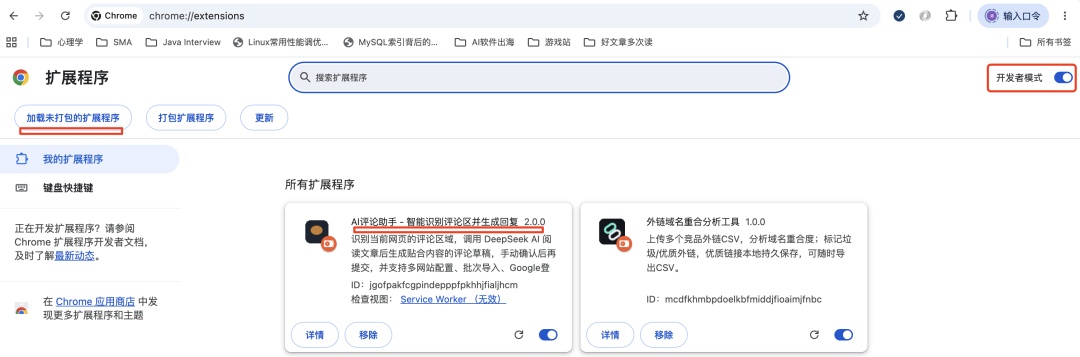
-
3
Turn on Developer mode
Toggle Developer mode in the top-right corner. Extra buttons appear under the address bar.
-
4
Load the unpacked extension
Click Load unpacked, then select the
autocomment-extensionfolder you unzipped in step 1. The extension appears in your list instantly.
-
5
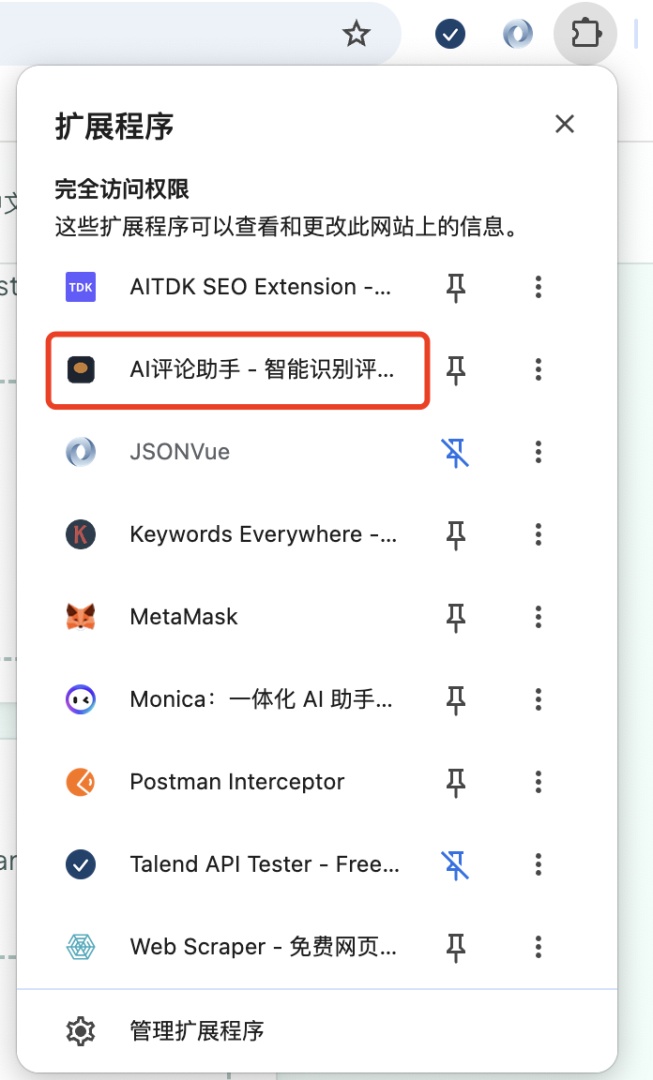
Pin it to your toolbar
Click the puzzle-piece icon in Chrome's toolbar, then the pin next to AI Comment Assistant so it's always one click away.
-
6
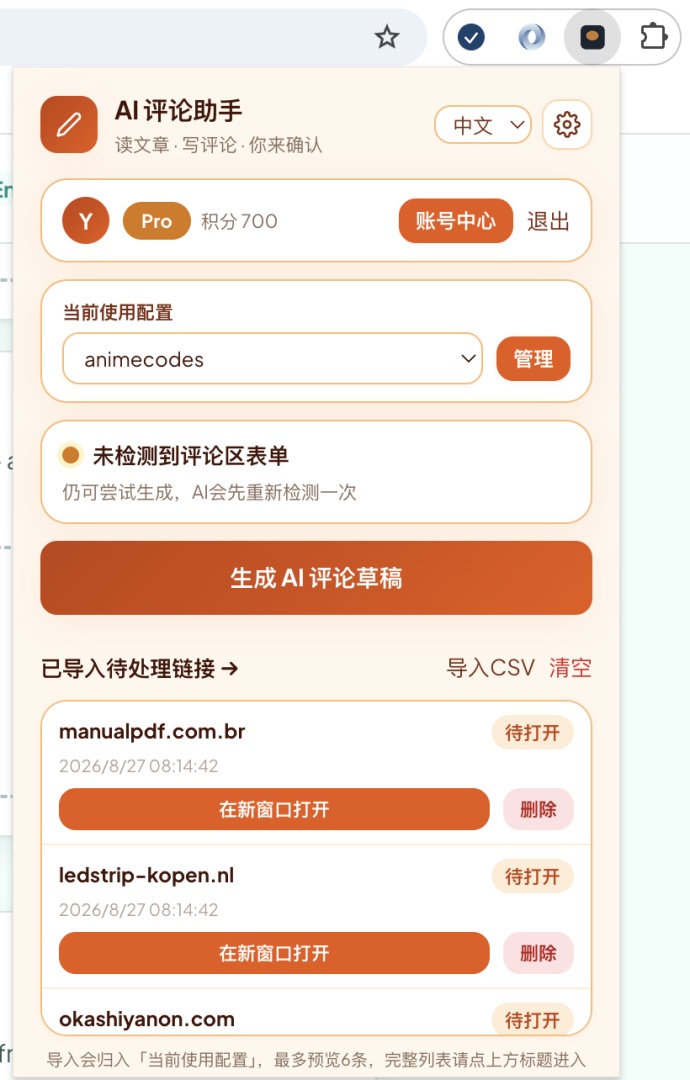
Sign in and start commenting
Click the extension icon, sign in with your Google account, open any article — and generate your first comment.
Tips & troubleshooting
- Don't delete or move the unzipped folder. Chrome reads the extension straight from disk — if the folder goes missing, the extension stops working.
- Updating? Unzip the new package, then click Reload on the extension card in
chrome://extensions/(or use Load unpacked and pick the new folder). - Can't find the folder in the file picker? On macOS, double-clicking the zip creates an
autocomment-extensionfolder. On Windows, right-click the zip and choose Extract All. - Load unpacked is grayed out? Make sure Developer mode is on (step 3). On some managed devices (e.g. work or school Chromebooks) developer-mode extensions are disabled by the administrator.
- Using Edge, Brave or Opera? The steps are identical — the file is a universal Chromium package.